


|
|
|
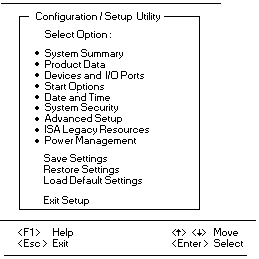
In the Configuration/Setup Utility program menus, you can accept the
configuration changes by viewing and saving the changes, or you can make manual
changes and then save the settings.
The following is a quick reference for indentifying symbols in the Configuration/Setup
Utility program.
To exit from the Configuration/Setup Utility program:
NOTE: The choices on some menus might differ slightly, depending on the BIOS
version that comes with the server.
Use the following commands to navigate through the screens and make selections:
| Key | Function |
|---|---|
| Up/Dwn | Move between menu items |
| Left/Right | Toggle between choices for a menu item |
| Enter | Select an item |
| Esc | Exit from a menu after viewing or making changes |
| F1 | Get help on a selected menu item |
System Summary: Select this choice to display configuration
information, such as the type and speed of the microprocessor, and the amount of
memory.
Changes that you make to configuration settings appear on this summary screen.
You cannot edit the fields on this screen. If you need to change the configuration
settings, you must make the changes from the applicable menu choices.
Product Data: Select this choice to view the machine type and
model, the system serial number, the system board identifier, and the revision level
or issue date of the flash EEPROM.
Devices and I/O Ports: Software recognizes ports from their port assignments.
Each port must have a unique port assignment. The Configuration/Setup Utility program normally
handels this, but you might have special hardware or software that requires you to change these assignments.
Select the Devices and I/O Ports choice to view or change the assignments for
devices and input/output ports.
You can add serial ports by installing a serial adapter in an expansion slot. See the
documentation that comes with the serial adapter for information about port assignments.
To display or change the port assignments:

Please see the LEGAL - Trademark notice.
Feel free - send a  for any BUG on this page found - Thank you.