


|
|
|
| Symptom/Error | FRU/Action |
|---|---|
| The screen is black when | 1. Verify that the LCD cover is firmly |
| the LCD cover is installed. | installed on the LCD. |
| 2. Diagnose the LCD assembly by following | |
| 'LCD Related Symptoms' | |
| The LCD is wavy when | Some overhead projectors interfere |
| the computer is placed | with the LCD of the computer. |
| on the overhead projector. | Use another overhead projector. |
| The LCD stays on even when | Make sure that the switch on the rear |
| the LCD cover is removed. | of the LCD is not stuck. |
| If it is stuck, release it with the | |
| tip of a ball-point pen. | |
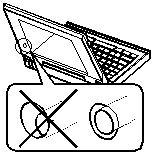
| ° Abnormal screen | 1. Check that the white film on the |
|---|---|
| ° Uneven color on the screen | LCD cover is clean. Gently wipe the |
| ° Spot on the screen | film with a dry, soft cloth, such as |
| a lens cleaner. | |
| 2. LCD Cover | |
| 3. Diagnose the LCD assembly by following | |
| 'LCD Related Symptoms' | |
| NOTE: | |
| The customer may be responsible for repair | |
| costs if the LCD cover was damaged due to | |
| misuse, excessive force, scratch, or liquid | |
| spilled by the customer. | |
| The computer has an | Problem such as high environmental temperature |
| intermittent problem when | might be the cause. |
| you use it on the | Use the stand supplied with the computer. |
| overhead projector. | |
| The remote control does | 1. Check that two AAA alkaline batteries are |
| not work. | installed in the remote control. |
| 2. Check that two AAA alkaline batteries | |
| in the remote control are at their normal | |
| energy (voltage) level. | |
| 3. Enable the IR port of the computer with the | |
| ThinkPad Features program. | |
| (Disable the serial port at this time.) | |
| 4. Refer to the trouble shooting section in the | |
| Help menu of the Mind Path Presentation F/X program. | |
| Set up this program following the guide. | |
| 5. If the preceding items are correct, the radiation | |
| from the light of the overhead projector might | |
| be interfering the IR port of the computer. | |
| Disable the rear IR port of the computer, and | |
| use the remote control with the front IR port. | |
| 6. Use the remote control with another computer, which | |
| IR port works normally. If the remote control does | |
| not work, the remote control is not working properly. | |
| If there is still a problem, refer to | |
| 'Infrared Related Symptoms' |
Please see the LEGAL - Trademark notice.
Feel free - send a  for any BUG on this page found - Thank you.